Remote Support
See the screen. Fix the problem. Keep the record.
Attended sessions from a link or a code, unattended access to the Windows machines you enroll, and every consent and action on the record — in Arabic and English.
What Telvory does today
Six parts, all live in the product. If it isn't on this page, we don't claim it.
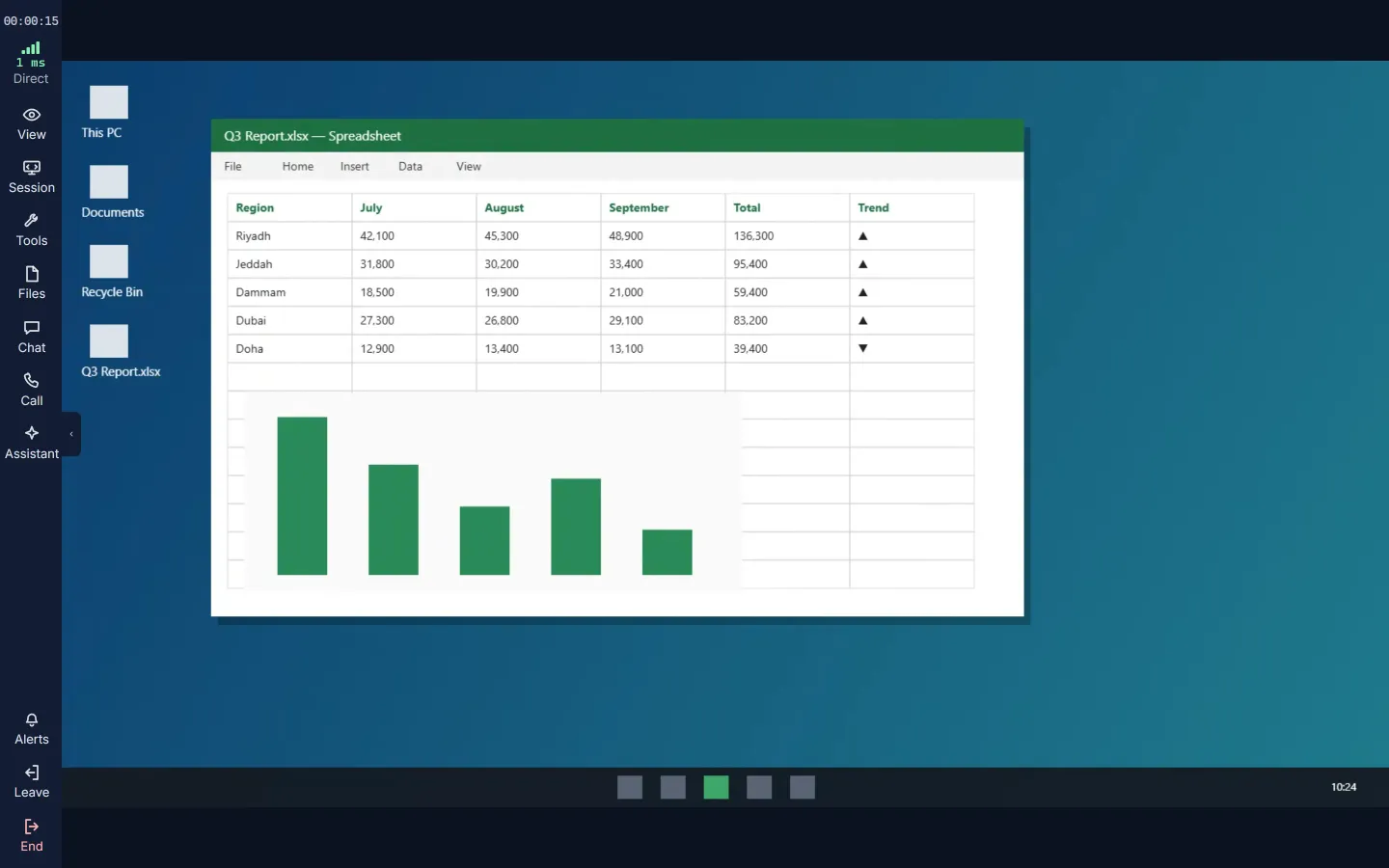
Attended support
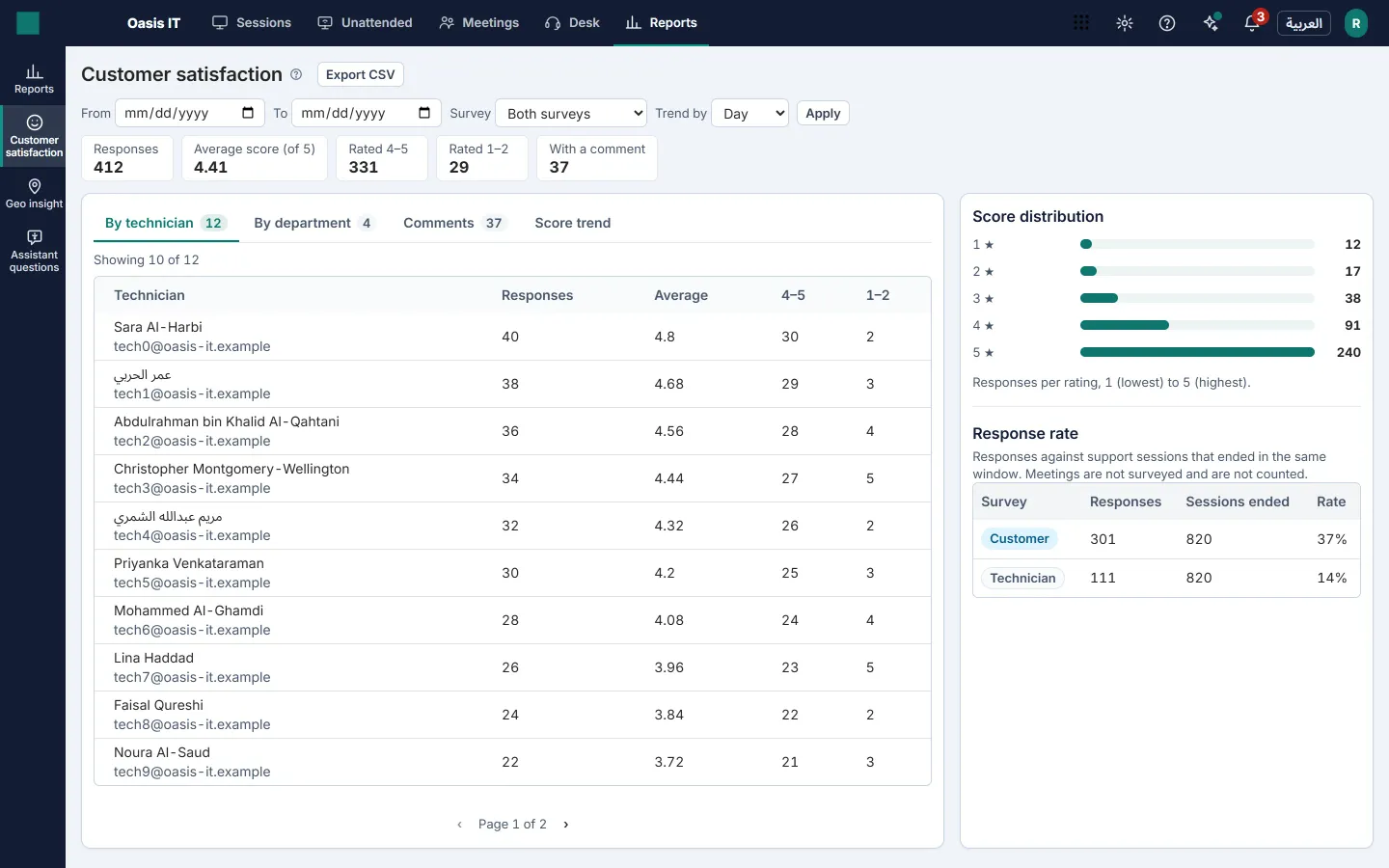
Start a session, send a link or a code, and your customer joins in seconds.
- A join page with a visible session code, your name and your organization, and exactly what you are asking for
- A small one-time helper for view and control — no installation, no admin rights, removed when the session ends — or a view-only share straight from the browser
- Customers on a phone can share their camera instead — handy for routers, printers and point-of-sale terminals
- Chat, voice and video, file transfer with resume, clipboard sync, multi-monitor switching and on-screen annotation
- Invite a colleague into a live session, or schedule a session for later with an email invitation
- Session recording when your policy allows it and the customer agrees, with a visible indicator throughout
Unattended access and fleet
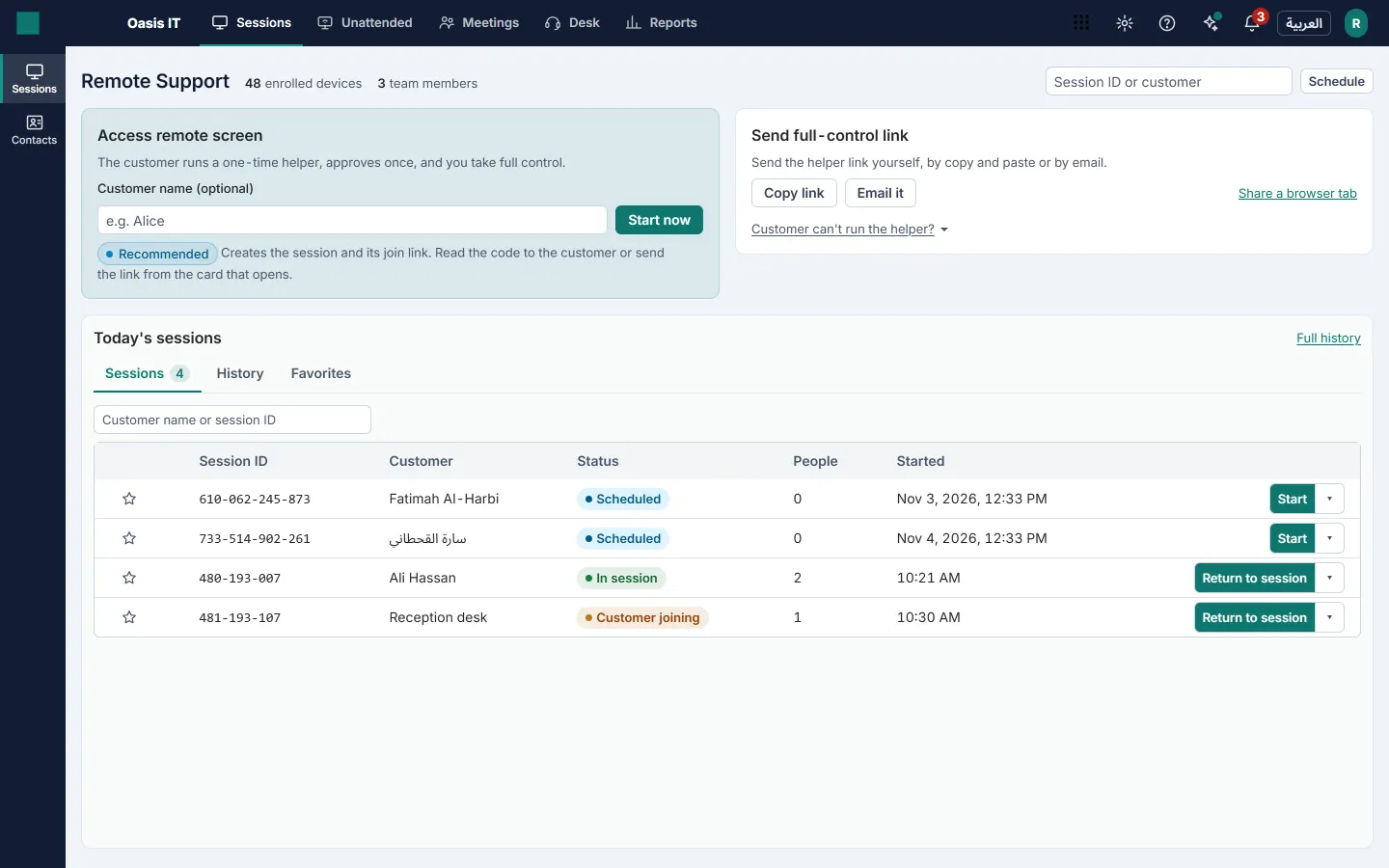
Enroll Windows machines once, then connect when nobody is there.
- A fleet table with presence, platform, IP addresses, groups, domains and last seen — searchable, filterable, with a column picker and CSV export
- Groups with their own session policies, favorites, device notes and an activity history for each device
- Wake-on-LAN through another online machine on the same network, and power options — lock, sign out, restart, restart into Safe Mode, shut down — reconnecting after a restart
- Per-device diagnostics — processes, services, registry, device manager, printers, shares, software and hardware inventory — and 21 Quick Launch admin tools your admins choose from
- A connection policy that decides whether the person at the machine is asked first, Secure Connect to require a fresh MFA check before any unattended connection, and idle sessions ended automatically
- One light installer for 64-bit Windows 7 SP1 to Windows 11, named for your organization — and an MSI package for Group Policy, Intune and Configuration Manager
Reports
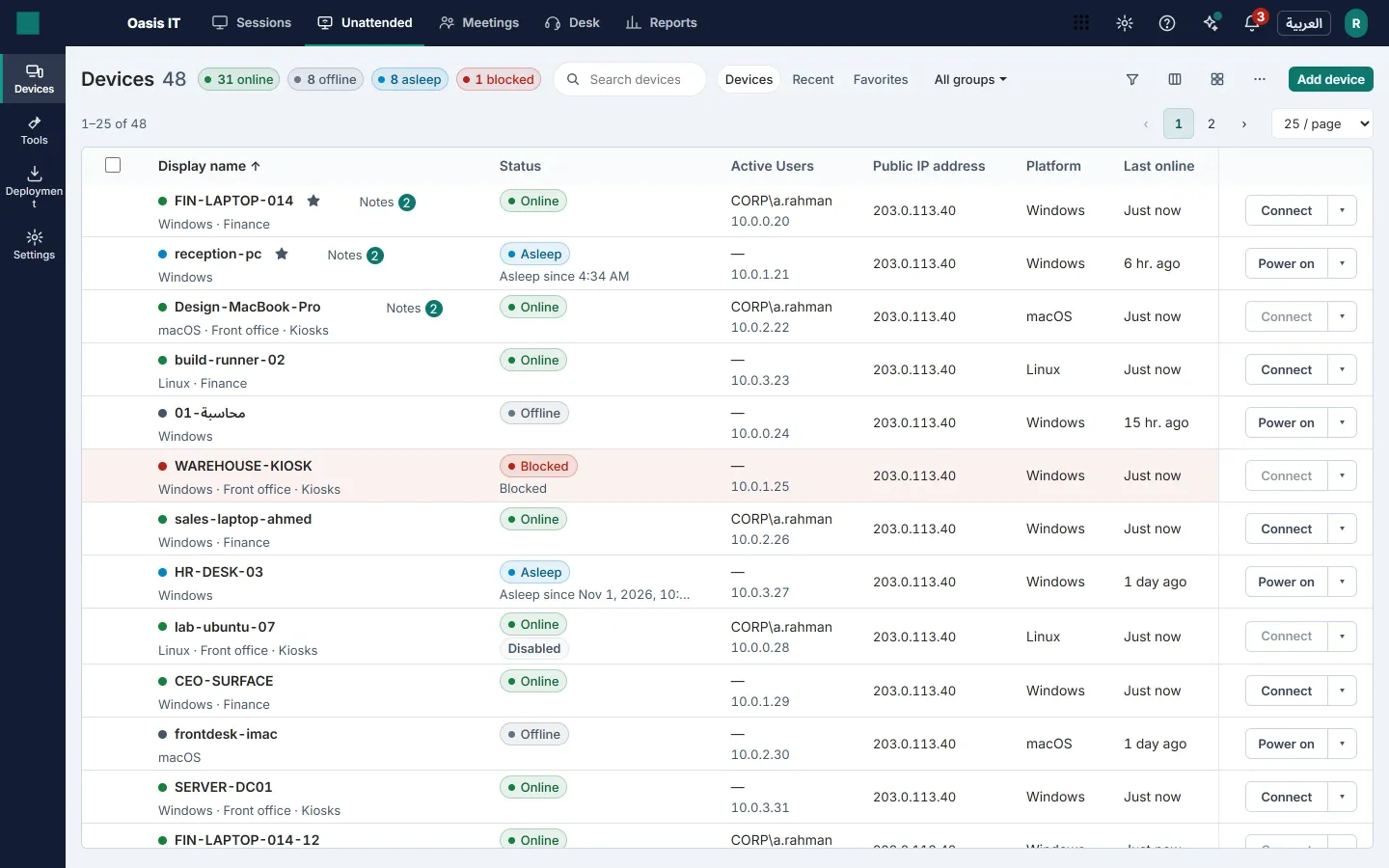
Know how support is going, not just that it happened.
- Session, technician and device reports, with CSV export and print-ready versions
- A satisfaction survey after each session, and an email survey for sessions that ended abruptly
- Sessions by country and city
- Session notes, chat transcripts and file-transfer history
- An audit log your workspace owners can read and export
Self-service portal and website widget
Let customers reach you without a phone call.
- A public portal for your workspace where customers start a Quick Support session in one click, open a ticket or send a web form
- Knowledge-base articles customers can read before they ask
- A service queue with departments and contacts for your team
- A website widget — Join or Request — that only appears on the sites you list
- Session invitations by email or SMS
Meetings and cobrowse Add-on
For the times a full screen share isn't the right tool.
- Meetings for training and walkthroughs, where each guest gets their own invitation — no shared code to leak
- Cobrowse: the customer shares a single browser tab, with consent, instead of the whole screen
- From your website widget, a view-only live copy of the page the customer is on, with password and card fields masked — when you switch it on
Meetings and webinars are an add-on you can buy on any plan, with a free trial of 14 days. Cobrowse stays in every plan.
Meetings & Webinars in detailIntegrations and administration
Fits the way your organization already works.
- Signed webhooks for session and device events, retried automatically
- API keys for the developer API, which is read-only today
- Departments, custom roles over a fixed permission catalog, and an IP allow-list
- Sign-in with email and password, or with a Google or Microsoft account, and authenticator-app MFA
- A data-retention policy for each kind of data, and a privacy console for erasure requests and breach records
- Tax invoices in Saudi riyals carrying the ZATCA QR code
How it works
Two ways in: with your customer at the screen, or with nobody there at all.
Attended — your customer is at the screen
Send a link or a code
Start a session and send the link by email, SMS or chat — or read out the code.
They see who is asking
The join page names you and your organization and lists what you're asking for: view, control, files, audio. They accept once.
You're connected
They run a small one-time helper: no installation, no admin rights, and it removes itself when the session ends. Can't run it? They can share their screen straight from the browser, view-only.
Unattended — nobody needs to be there
Deploy the agent
Send a deployment link, or roll out the MSI through Group Policy, Intune or Configuration Manager.
Consent is recorded once
When the machine enrolls, its consent is recorded: who gave it, when and for what. It can be withdrawn at any time from the consent register.
Connect when you need to
The machine appears in your fleet and you connect without anyone at the desk having to click — or set a policy that asks them first. Every action is audited.
Questions
Does my customer need to install anything?
No installation and no admin rights. For view and control they run a small one-time helper that removes itself when the session ends. If they can't run it, they can share their screen straight from the browser, view-only. Unattended machines are different: they have the Telvory agent installed once.
Can I deploy the agent with Intune or Group Policy?
Yes. There is a 64-bit MSI package that installs silently and takes your enrollment token as a property — for Group Policy, Intune, Configuration Manager and golden images.
Which computers can I support?
64-bit Windows 7 SP1 to Windows 11 (ARM64 runs it under emulation). The Linux agent enrolls and runs diagnostics but does not share its screen, and we have no macOS or mobile agent yet. Customers on a phone can join a session and share their camera.
Does the person at an unattended machine approve each session?
Not by default. Consent is recorded once, at install. After that a technician can connect without anyone at the desk — or you can set a policy that asks them first, and require a fresh MFA check with Secure Connect.
What happens to session recordings?
Recording is off unless your policy allows it, and the customer must agree each time. Recordings are made in the technician's browser, stored encrypted in the Gulf region, and kept for the retention period you set, from 1 to 90 days.
Also in Telvory
Desk
Turn email and web requests into tickets your team answers on time, in Arabic or English.
Explore DeskMeetings & Webinars
Meet clients and present webinars from the same console — guests join from a browser.
Explore Meetings
See it on your own machines
Create a free workspace and run an attended session in minutes, or talk to us about a larger fleet.